Why your WooCommerce and form emails need a log
When a customer says they never got their receipt, or a lead never reached you, a log turns guessing into a ten-second answer. Here is what to look for.
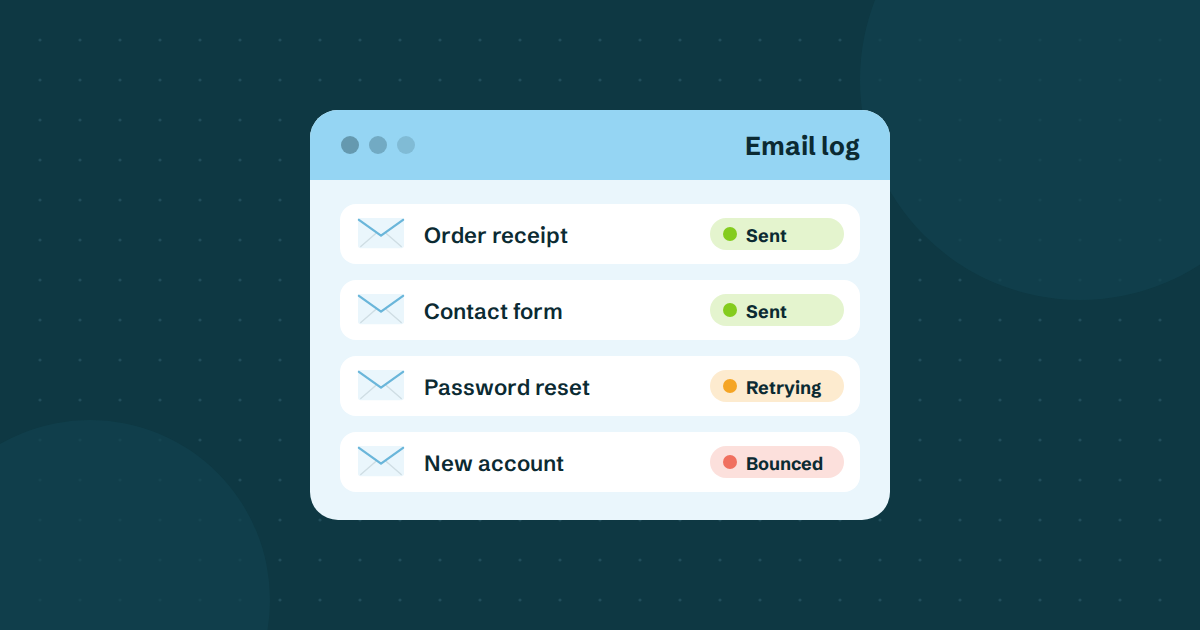
Most WordPress sites send email all day without anyone watching. Order confirmations, contact form alerts, new account notices, password resets. When it works, you never think about it.
When it does not, you usually find out the worst way: a customer writes to say they paid and heard nothing, or a lead tells you they filled in your form three weeks ago and never got a reply. By then you have no way to know what happened.
An email log fixes that. It is a record of every email your site sent and what became of it. This post explains what a log shows, the situations where it saves you, and what to do if you do not have one yet.
What an email log actually is
A log is a searchable list. Each row is one email, with who it was to, who it was from, the subject, the date, and a status. Open a row and you see more: the message itself, and a timeline of what happened to it.
WordPress itself keeps nothing like this. It hands the email to the mail system and forgets about it. Some plugins add basic logging on your own site, but those can only record that WordPress tried to send. They cannot tell you whether the other end accepted it.
What the statuses tell you
The exact words differ between tools, but the useful distinctions are these.
| Status | What it means | What you do |
|---|---|---|
| Sent | The email went out and the receiving server accepted it | Check spam folder and address with the recipient |
| Bounced | The receiving server refused it, often because the address does not exist or the mailbox is full | Fix the address, read the reason |
| Failed | It could not be sent | Read the reason, then fix the cause |
| Blocked | The address or domain is on your own block list | Remove it from the list if that was a mistake |
Accepted is not the same as in the inbox
"Sent" or "delivered" means the recipient's mail server took the message. After that, the provider decides whether it goes to the inbox, a Promotions tab or spam, and no sender can see that choice. So a log cannot say "it was in the inbox". What it can say is "the other end accepted it at this time", which narrows the search enormously.
Four situations where a log pays for itself
1. "I never got my order confirmation"
A WooCommerce customer writes in. Without a log you can only suggest they check spam and hope. With one:
- Search the log for their email address.
- Find the order email and open it.
- If it shows sent, tell them it was accepted at a given time and ask them to search for your store name in spam. Offer to resend.
- If it shows bounced, the address on the order is probably mistyped. Contact them another way, and fix the order.
- If there is no entry at all, WooCommerce never sent it. Check the email settings for that order status.
That is about a minute of work, and the customer gets a straight answer instead of a shrug.
2. Form leads quietly going missing
A contact form that stops sending is the sneakiest failure, because nobody notices. The form still says "Thanks, we'll be in touch" and the visitor leaves happy. You just never hear from them.
Make a habit of looking at the log once a week. If form notifications that arrived daily are suddenly absent, or are showing as failed, you will see it long before the quarter's numbers do. Test your forms after plugin updates, too.
A related trap: if a form uses the visitor's address as the From address, mail servers may reject it because your server has no right to send as that domain. Send from your own domain and put the visitor in Reply-To. Our post on why WordPress emails go to spam explains why.
3. A password reset that does not arrive
Whether it is you or a member, the first question is whether WordPress sent it and whether the other side took it. A log answers both at once. We have a full list in password reset emails not arriving.
4. Spotting a pattern
Individual rows are useful. Patterns are better:
- A cluster of bounces to one provider can mean that provider dislikes something about your mail.
- Many bounces to addresses that look mistyped suggest adding a confirm-your-email field to a form.
- Failures that begin on a certain date point to a change you made around then, such as a plugin update or a DNS edit.
Without dates and statuses in front of you, none of this is visible.
Why the log needs to see the sending side
There are two hops in an email's journey: from your site to the sending service, and from the sending service to the recipient. A log kept only inside WordPress sees the first hop at best. It will happily record "sent" when the message was rejected a second later.
That is why a log that comes from the sending service itself is more useful. It knows what the receiving server said, including the reason in its own words, and it can show a timeline: received, sent, bounced.
What to look for in a log
If you are choosing a tool, check for:
- Search by recipient, because "did this person get it?" is the question you will ask most.
- Clear statuses and the reason for any failure.
- A timeline of what happened to each message.
- Enough history. A month is a sensible minimum, since customers often write in weeks later.
- A look at the whole message, so you can see exactly what the customer was sent.
Also be careful about privacy. A log holds the content of customer emails, so choose a tool that treats them carefully and does not keep them forever.
Where SendWP fits
Every email your site sends through SendWP is recorded in your email log, kept for at least 30 days. You can search by recipient, sender or subject, filter by status, and open any email to see the message, the status with the reason when something went wrong, and a timeline. Statuses are sent, bounced, failed or blocked. A 30-day overview shows your delivery and bounce rates.
A send attempt that doesn't go through is tried again before the email is marked failed. Bounces and spam complaints are flagged in the log, and you have a block list of your own to stop sending to an address or domain. Read reading your email log and why an email failed, or see pricing. Plans start at $9 a month, and the first month is $1 on monthly plans.