GiveWP Donation Emails Not Sending? Start With the Donation Status
A missing GiveWP receipt usually starts with the donation’s status, not your email. Here’s how to find stuck donations, fix the Stripe webhook, check your settings, and get receipts to donors again.

GiveWP donor email not sending? A donor writes to ask whether their gift went through, because the receipt never came, or because all they got was a “donation processing” email. The New Donation email that tells you about each gift has gone quiet too, even though Send test email works fine.
Each missing receipt costs you something. A donor starts to wonder where their money went, and someone on your team ends up sending receipts by hand.
This is fixable. GiveWP’s own support starts by asking whether the donation is Completed, so we will too. Then we’ll check GiveWP’s settings and whether the email ever left your site.
GiveWP only sends donation emails once a donation is Completed
GiveWP creates the donor’s Donation Receipt and your New Donation email at the same time, and only when a donation’s status becomes Completed. Until then there’s no receipt to send, so no email setting or sending service can help.
Here’s how to check:
- Go to GiveWP > Donations.
- Find the donation and read its Status column.
- Click the donation to open it. The status also shows as a badge at the top.
Seeing Completed? Skip down to the email settings.
Seeing Processing? GiveWP sends the donor a separate email, the Donation Processing Receipt, when a donation is marked as processing. So your donor may have a “processing” email and never the receipt.
Seeing Pending? GiveWP won’t send either email until the donation is marked Completed. Check that the payment went through with your payment gateway, then mark it Completed as shown below.
Using Stripe’s Payment Element? A missing webhook leaves donations in Processing
The donation’s screen shows which gateway took it, on the Gateway card. With the Stripe Payment Element gateway, GiveWP sets each donation to Processing at checkout, and it moves to Completed when Stripe’s webhook reaches your site. A webhook is a short message Stripe sends to say “this payment went through.”
No webhook, no Completed status, no receipt. GiveWP’s Stripe documentation says it plainly: “donor receipt emails will not be sent unless a donation has a Completed status.”
The Stripe Credit Card gateway marks a donation Completed straight away when Stripe reports the payment succeeded, but GiveWP’s documentation still lists the webhook as required, so set it up either way:
- Go to GiveWP > Settings, open the Payment Gateways tab, then the Stripe section.
- In the Stripe Webhooks field, copy the webhook URL GiveWP shows you.
- In your Stripe Dashboard, open the Webhooks page (GiveWP links to it), add an endpoint with that URL, and select the events GiveWP’s documentation lists.
Once a webhook arrives, the same field shows “Last webhook received on” with a date. Webhooks for test-mode donations are set up separately in Stripe.
Mark a stuck donation Completed to send its emails
Once the cause is fixed (for Stripe’s Payment Element, the webhook), finish the donations that are already stuck. For each one your payment gateway shows as paid, open the donation, go to the Records tab, change the status to complete, and click Save changes. GiveWP then creates the Donation Receipt and the New Donation email.
For a Completed donation whose receipt got lost, use the Resend receipt button on the donation screen. It resends the donor’s receipt, not your New Donation email.
Completed but no email? Check GiveWP’s email settings
Go to GiveWP > Settings and open the Emails tab. You’ll see links for Donor Emails, Admin Emails and Email Settings.
- Donor Emails holds the Donation Receipt.
- Admin Emails holds New Donation. Its Recipient(s) column shows who gets it, which is your site’s admin email address unless you changed it.
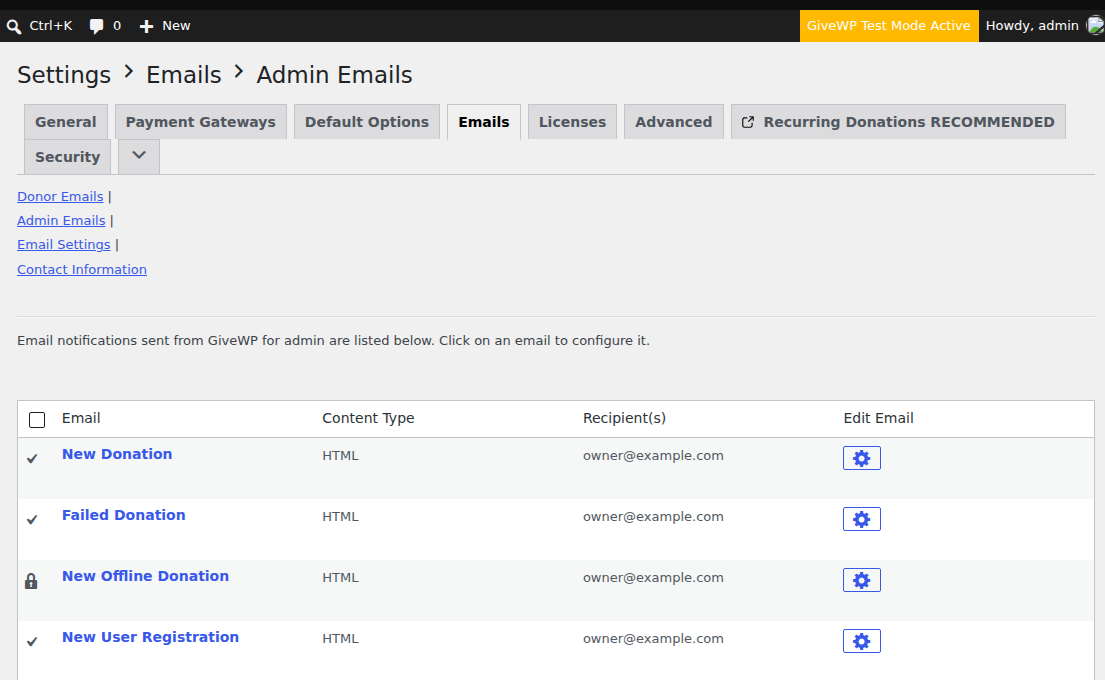
Open each email and make sure Notification is set to Enabled. Then check your donation form, because each form can override these settings with Global Options, Customize or Disabled. In the visual form builder, you’ll find them under the form’s Email Settings.
Each email also has a Send test email link. It goes to that email’s recipients and needs no donation, so it proves GiveWP can send that email, not that a real donation will reach Completed. That’s one way the test can work while real receipts never arrive.
Use a From Email on your own domain
Gmail and Yahoo require every sender to authenticate their email with SPF or DKIM, DNS records that prove an email really came from your domain.
Under Email Settings, the From Email field is the address every GiveWP email comes from, and GiveWP uses it as the reply-to address too. It starts out as your site’s admin email. If that’s a gmail.com address or one on another domain, change it to an address on your site’s own domain and save.
A free mail log shows whether the email left WordPress
A mail log lists every email WordPress is asked to send. GiveWP’s own troubleshooting page suggests one too.
- Install and activate WP Mail Logging.
- Make a test donation to an email address you can check, and confirm it’s Completed.
- Open WP Mail Logging > Email Log and look for the Donation Receipt and the New Donation email.
Nothing logged after a Completed donation? Go back over the email settings above.
Both emails logged but never received? Check the spam or junk folder first. Whether they landed there or nowhere at all, GiveWP did its part, and the trouble is how your site sends email.
Logged but never arrived? Fix the sending side
Many web hosts block or throttle the email WordPress sends through them, and email sent straight from a web server often isn’t authenticated. That’s the problem we built SendWP for, so it’s what we’d suggest. Once your site is connected, every email WordPress sends goes out through SendWP instead of your web host.
GiveWP recommends SendWP in its email settings, and SendWP is a paid service. Setup starts right there:
- Go to GiveWP > Settings > Emails > Email Settings.
- Below the From Email field, click Connect with SendWP. GiveWP installs and activates the SendWP plugin and takes you to SendWP.
- On SendWP’s page, create your account, or click Already registered? to log in, then choose a plan for your site. Once the plan is active, SendWP sends you back to GiveWP’s Email Settings, where the SendWP row now reads “SendWP plugin activated.”
- Make another test donation and check both inboxes.
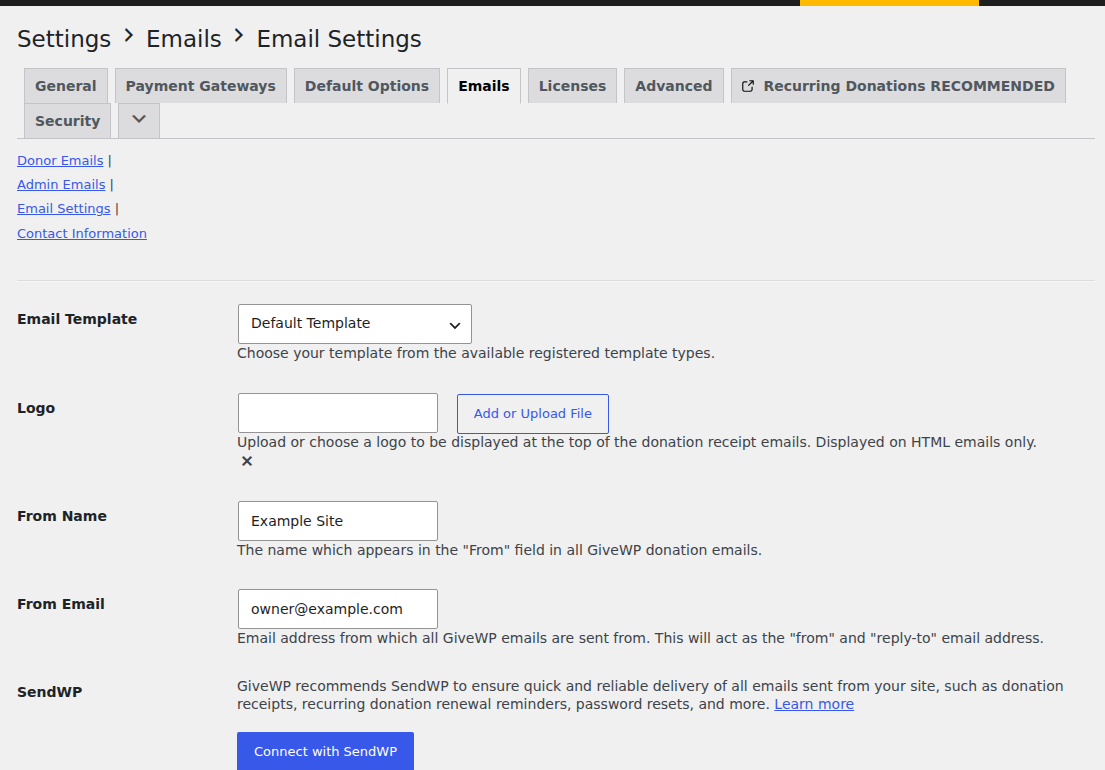
If the row says “Email sending is currently disabled” instead, use the “Click here to enable it” link in that note. Our GiveWP setup guide keeps these steps in one place.
Get your GiveWP donation receipts to donors again
You started with a donor asking where their receipt went. If the donation was stuck, it’s Completed now and GiveWP has created the receipt; if a setting was off, it’s back on. Nice work.
SendWP can’t complete a donation for you, so those checks always come first.
When the trouble is the sending side, SendWP is the fix we’d pick: your receipts and New Donation emails go out through SendWP instead of your web host, you connect it from the button already in GiveWP, and 30 days of email logs let you look up a recent receipt a donor asks about. We believe it’s the best way to get your receipts to donors. It’s a paid service, nonprofits can apply for SendWP’s nonprofit discount, and you can get started for $1 your first month.