
Getting started
Install SendWP in eight easy steps.
From the download to your first email in the log. Each step shows you exactly what to click in WordPress.
The eight steps
-
Step 1: Download the SendWP plugin.
If your download has started, you’re already done with this one. The plugin comes as a single zip file. Leave it zipped: WordPress unpacks it for you.
Download SendWP -
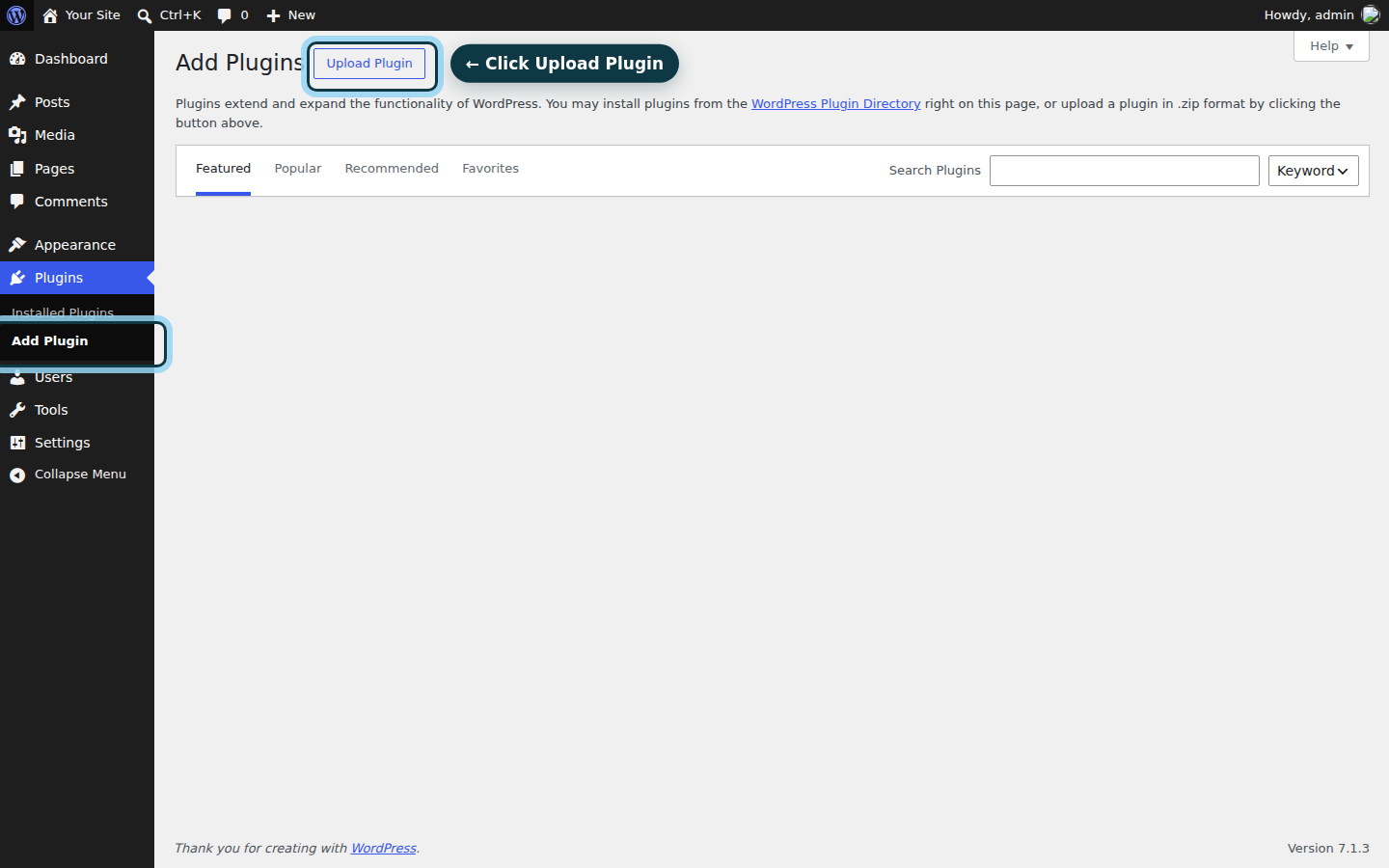
Step 2: In WordPress, go to Plugins → Add Plugin → Upload Plugin.
Log in to your site’s dashboard as an administrator. In the menu on the left, choose Plugins, then Add Plugin (Add New Plugin on older versions of WordPress), and click the Upload Plugin button at the top of the page.
Screenshot of the WordPress dashboard. -
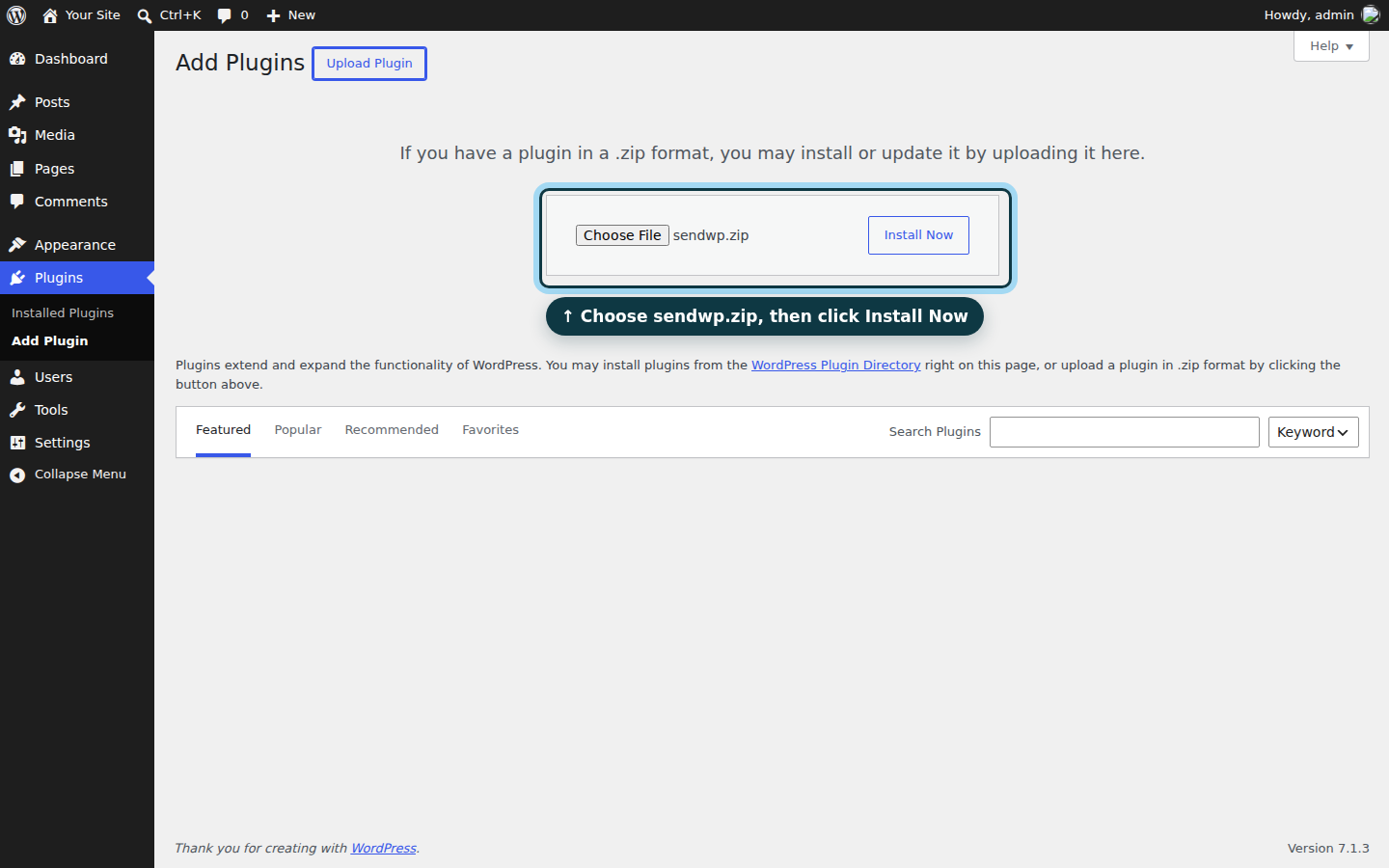
Step 3: Choose
sendwp.zipand click Install Now.Click Choose File, pick the SendWP zip from your Downloads folder and click Install Now. WordPress uploads it and installs it in a few seconds.
Screenshot of the WordPress dashboard. -
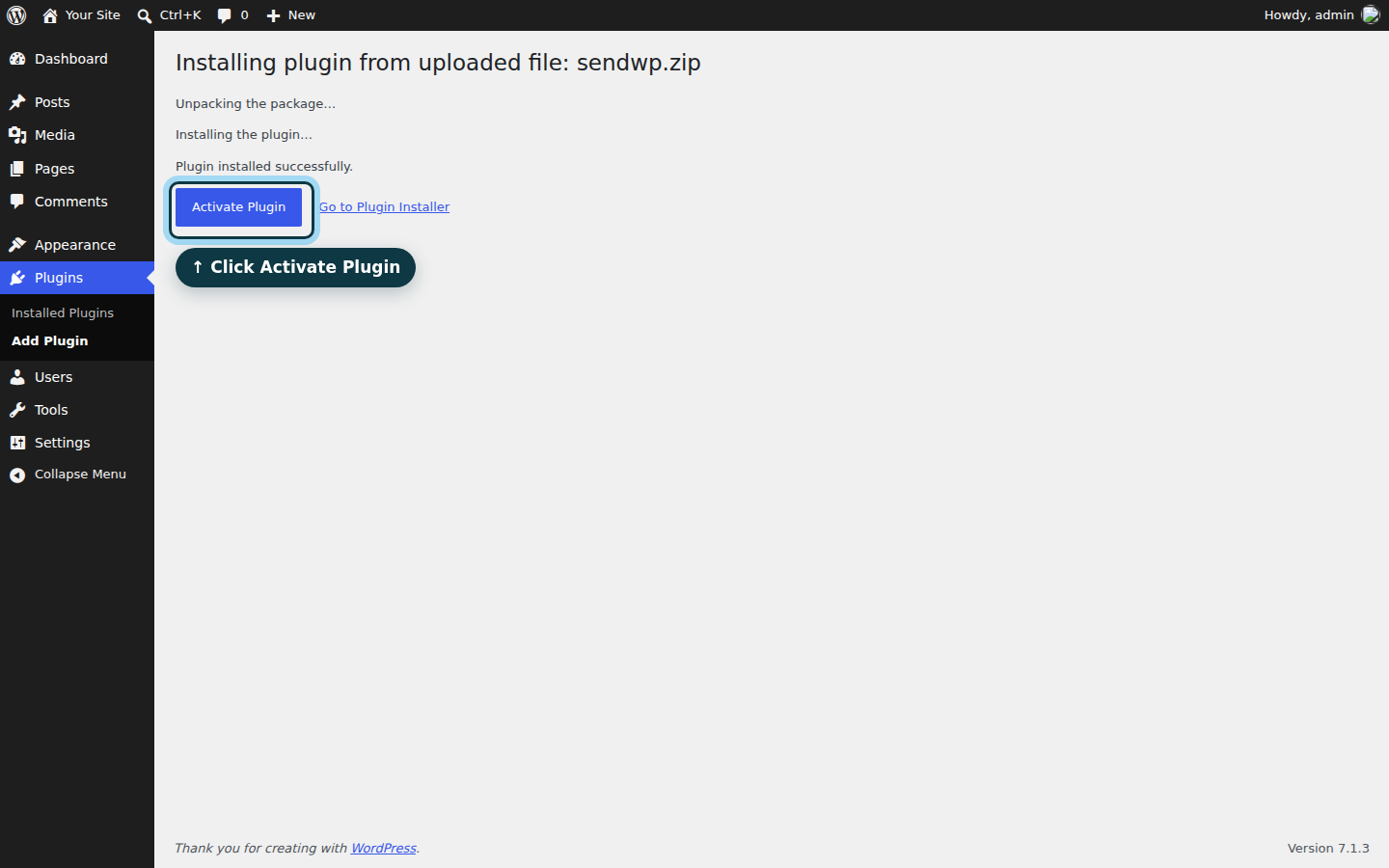
Step 4: Click Activate Plugin.
When WordPress says the plugin installed successfully, click Activate Plugin. SendWP now shows in your plugin list and under Tools.
Screenshot of the WordPress dashboard. -
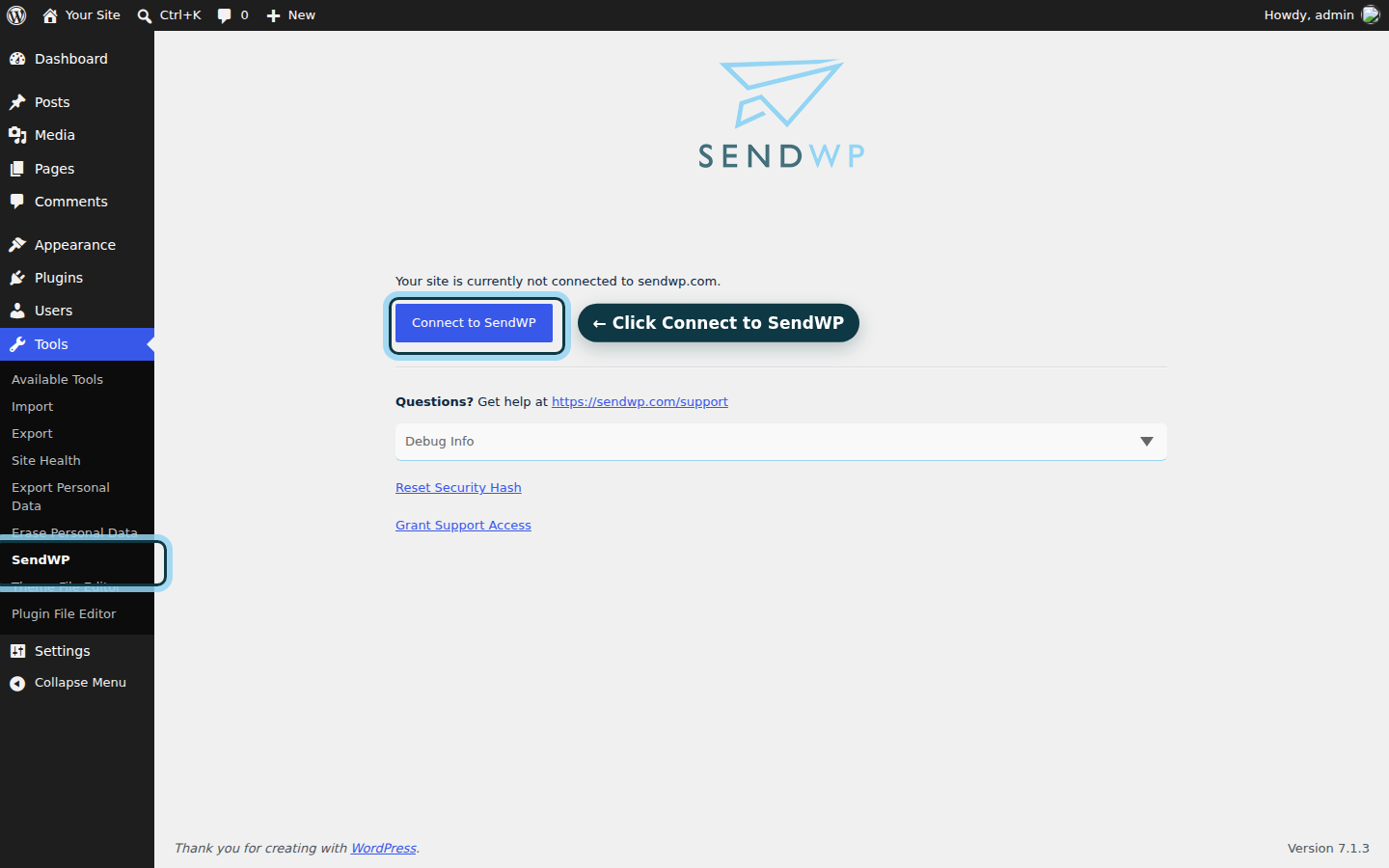
Step 5: Open Tools → SendWP and click Connect to SendWP.
Until you connect, it says “Your site is currently not connected to sendwp.com.” Click Connect to SendWP and you’ll go to SendWP to set up your account for this site.
Screenshot of the WordPress dashboard. -
Step 6: Create your SendWP account and pick a plan.
On Create your account, enter your email address and a password, or choose Already registered? to log in. Got a partner code? Choose Have a partner code? Click here. Then click Proceed to Checkout, pick monthly or yearly and click Subscribe.
You’ll see Success!, and a few seconds later you’re back in WordPress, where Tools → SendWP says “SendWP is currently enabled and sending email.”
An illustration of the sign-up screen, not a screenshot. -
Step 7: Authenticate your domain.
In your SendWP dashboard, open your site and go to Deliverability. You’ll find the exact records to add at your DNS host, each with a copy button: a DKIM Record and an SPF Record, plus a DMARC Record we recommend.
Once they’re added, click Recheck DNS. Each record turns from Needs Setup to Configured; if you see Validate DKIM, click it. DNS changes can take a while to show up. Each record, explained.
An illustration with sample records, not a screenshot. -
Step 8: Send a WordPress email and see it in your log.
The easiest test is one your site already sends: log out and use Lost your password? on your WordPress login page with your own account. Then, in your SendWP dashboard, open your site, go to Emails and find it at the top of Email Logs, with its status.
There? You’re all set. Every email your site sends through WordPress now goes through SendWP.
An illustration with sample emails, not real data.


Stuck?
Search the docs for your question, or write to the SendWP team and get a clear answer about your site’s email.
Want every detail?
Getting started with SendWP covers the requirements, connecting several sites and turning SendWP off for a while. Using GiveWP, Ninja Forms or LifterLMS? They can install and connect SendWP for you: see Integrations.
Not sure which plan you need?
Every plan includes your own authenticated domain, the email log and the 30-day overview. Plans start at $9 a month.
Compare plans